Support
Contents
System Requirements
Minimum:
- Requires a 64-bit processor and operating system
- OS: Windows 10 64-bit or later
- Processor: Quad-core Intel or AMD, 3.2 GHz or faster
- Memory: 16 GB RAM
- Graphics: NVIDIA GeForce GTX 1070 / AMD Radeon RX 5700 or equivalent with at least 8GB VRAM
- DirectX: Version 12
- Storage: 30 GB available space
Recommended:
- Requires a 64-bit processor and operating system
- OS: Windows 10 64-bit or later
- Processor: Core i5 or Ryzen 5, 3.5 GHz or faster
- Memory: 32 GB RAM
- Graphics: NVIDIA GeForce RTX 2070 / AMD Radeon RX 6700 XT or equivalent with at least 12GB of VRAM
- DirectX: Version 12
- Storage: 30 GB available space
How to Report an Issue
Encountering a problem? We're here to help! The more information you can provide, the better we can assist you.
When reporting an issue, please include the following information if possible:
- Description: A detailed explanation of what's happening
- Steps to reproduce: What you were doing when the issue occurred (if you can remember)
- Visual evidence: Screenshots or video clips showing the problem
- Save file: Your most recent save file (see the Managing Your Save Files section for help locating it)
- System specs: Your PC's hardware specifications
Where to reach us:
- Discord: https://discord.gg/channel37 – head to the #support-forum channel and create a post
- Email: support@channel37.co
Managing Your Save Files
Your game saves are stored in two different locations on your computer:
- Current saves – These are the saves you see in the game's save/load menu
- Auto-save backups – Historical backups of every auto-save the game has created
Note: Throughout this section, <YOUR_STEAM_ID> refers to your unique
Steam ID number. This is a long numeric identifier (typically 17 digits) that Steam uses to identify
your account. When navigating to your save folders, replace <YOUR_STEAM_ID> with your
actual Steam ID number.
Finding Your Current Saves
These are the save files you'll see when you open the save and load menus in-game. You can manually save to 8 different slots (numbered 0-7).
Windows:
Linux:
Understanding save file names:
- Manual saves follow this pattern:
<YOUR_STEAM_ID>_0.sav,<YOUR_STEAM_ID>_1.sav, etc. - The number after the underscore corresponds to the save slot (0-7). For example, save slot 3 will be
named
<YOUR_STEAM_ID>_2.sav - Auto-saves include "AutoSave" in the name and always end with
_0, such as<YOUR_STEAM_ID>_AutoSave_0.sav - There should only ever be one auto-save file in your SaveGames folder
Understanding Auto-Save Backups
Windows:
Linux:
The SaveGameBackups folder contains a backup of every auto-save the game has ever created. The number of files depends on your auto-save interval setting and how long you've been playing.
Example: If you've played for 1 hour with auto-save set to every 15 minutes, you'd expect to find 3-4 backup files. These backups can be a lifesaver if something goes wrong with your current save!
Storage tip: If you've been playing for many hours, the SaveGameBackups folder can get quite large. It's safe to delete older backups, but we recommend keeping at least a few days' worth of saves. To clean up, sort the folder by "Date modified" and delete files starting with the oldest ones.
Backup file naming: Auto-save backups include a timestamp in the filename showing when they
were created. The format is YYYY-MM-DD_HH_MM_SS. For example:
12345678901234567_AutoSave_0_2025-11-21_00_26_30.sav
How to Recover a Previous Auto-Save
If something goes wrong, you can restore an earlier auto-save from your backups. Here's how:
- Open the backup folder:
- Windows:
%localAppData%\Voyage\Saved\SaveGameBackups\<YOUR_STEAM_ID> - Linux:
/opt/steamlib/steamapps/compatdata/1783560/pfx/drive_c/users/steamuser/AppData/Local/Voyage/Saved/SaveGameBackups/<YOUR_STEAM_ID>
- Windows:
- Find a recent backup: Sort the folder by "Date modified" to see the newest files first
- Copy the backup file you want to restore
- Open your current saves folder:
- Windows:
%localAppData%\Voyage\Saved\SaveGames\<YOUR_STEAM_ID> - Linux:
/opt/steamlib/steamapps/compatdata/1783560/pfx/drive_c/users/steamuser/AppData/Local/Voyage/Saved/SaveGames/<YOUR_STEAM_ID>
- Windows:
- Paste the backup file into this folder
- Rename the file: Remove the date and time from the filename. For example:
- Change:
12345678901234567_AutoSave_0_2025-11-21_00_26_30.sav - To:
12345678901234567_AutoSave_0.sav
- Change:
- When prompted to overwrite the existing file, click "Yes"
- Launch the game and load from the auto-save slot
- Test if the issue is resolved
- Tip: If the first backup doesn't fix it, try a few different recent backups to minimize lost progress
When Should I Recover a Save?
You might want to restore an earlier save if you experience:
- Boat physics issues (stuck, sinking or flying away)
- Getting stuck in a "soft-lock" where you can't progress or move
- Quests that won't progress
- Power systems not working
- Elevators not functioning
- Visual, audio or physics glitches
- When our support team asks for a save file to investigate an issue
General Troubleshooting Tips
Before diving into specific issues, here are some quick fixes that solve many common problems:
- Update your PC's drivers: Outdated drivers are a common cause of visual bugs and crashes. Make sure you have the latest drivers installed from your hardware manufacturer's website.
- Update your operating system: Keep your OS up to date with the latest updates and security patches. Missing updates can cause compatibility issues.
- Verify game files: In Steam or Epic Games Store, use the "Verify" or "Repair" option to check for corrupted or missing game files.
- Close background apps: Some programs running in the background can interfere with the game. Try closing unnecessary applications before launching.
- Restart everything: Sometimes a simple restart of the game (or even your PC) can fix issues. It's worth trying!
- Check your game version: Make sure Steam or Epic has finished downloading the latest update before launching the game
Try Different Video and Graphics Settings
Video tab:
- Anti-Aliasing & Upscaling: Ensure the chosen options are suitable for your PC's hardware
Graphics tab:
- Try the Raytracing settings:
- MegaLights
- Reflection
- Shadows
- Players have reported lowering Shadow Quality can improve performance on some hardware configurations
Delete Shader Cache
Windows:
Delete Voyage_PCD3D_SM6.upipelinecache
The file should be recreated on next load, game may hang while new file is being written
Delete Settings File
Windows:
Delete GameUserSettings.ini
The file should be recreated on next load, game may hang while new file is being written
Disabling Ray Tracing (Older Graphics Cards)
If your graphics card doesn't support ray tracing, you can disable it to improve performance and stability.
How to disable:
- Steam: Right-click the game in your Steam library → Properties → General → Launch
Options → enter:
-noraytracing - Epic Games Store: Open Epic Games Launcher → Click the three dots next to The Last
Caretaker → Manage → Add the following to "Command Line Arguments":
-noraytracing
Systems with Multiple Graphics Cards
If your system has multiple GPUs (for example, both integrated and dedicated graphics), the game might select the wrong one, leading to poor performance or issues. If you're experiencing performance problems and have multiple graphics cards, you may need to configure your system to ensure the game uses the correct GPU. The method for doing this varies depending on your operating system and hardware setup, so you'll need to research the specific steps for your configuration.
No Sounds
In Windows Settings: System > Sound > Chosen output device > Properties, set your PC's sound output format: 24 bit, 48000Hz
Intel AI Boost or Intel NPU Error: Npu_d3d12_umd
Players with Intel AI Boost and Intel NPU may find the game does not load past the Channel37 splash screen.
If you experience this, try disabling Intel AI Boost and any related software.
Game does not launch with 0x11C7 error
The 0x11C7 error relates to Windows Defender. Make sure Windows is up-to-date with the latest security patches or whitelist the game folder in Windows Security Settings
Common Issues and Solutions
Having trouble? Check the tables below for quick solutions to the most common problems players encounter.
Boat is Stuck, Sinking or Flying Away
EXPERIMENTAL TOOL - Relocate boat (backup saves before using):
- Add the "-ea" launch option in Steam
- This will add a new option in the pause menu: Early Access
- Use the option "Relocate boat"
Quick Fix - Force Boat Spawn Cycle: If your boat is experiencing issues, you can force it through a spawn cycle by swimming 500-800 meters away from it. Start swimming away from the boat and periodically turn around to check on it. Continue swimming until the boat disappears from the horizon, then swim back toward it. This forces the boat through its spawn cycle and has been known to resolve various boat-related issues.
| Possible causes | Possible solutions |
|---|---|
| Loose item interacting poorly with the boat |
|
| An enemy or NPC is interfering with the boat |
|
| A built module or modules are interfering with the boat |
|
| The boat is caught in railings at some platform edges |
|
Power System Not Working
| Possible causes | Possible solutions |
|---|---|
| Known bug – building shows as unpowered despite working setup |
|
| Known bug – cable connected to the same port on a connector |
|
| Power generation problem |
|
Elevator Not Working
| Possible causes | Possible solutions |
|---|---|
| Known bug – both vertical elevators and horizontal platforms can become unresponsive |
|
| Power generation problem |
|
| Elevator moves briefly but then stops and you have to keep pressing the buttons to make it move again |
|
Crafting says Paused or Paused Unholstered
| Possible causes | Possible solutions |
|---|---|
| It says "Paused" in the Fabricator screen |
|
| It says "Paused Unholstered" when crafting by hand |
|
Quest Won't Progress
| Possible causes | Possible solutions |
|---|---|
| Known bug |
|
| Rocket Launch quests won't progress |
|
Lazarus Racks, Lazarus Pods, Seeds
| Possible causes | Possible solutions |
|---|---|
| Lazarus rack starting human growth phase automatically after minimum requirements have been met |
|
| Lazarus rack won't recognize pod with seed or seed's timer continues counting down when pod in working Lazarus rack |
|
| Lazarus rack won't recognize added food and memories |
|
| Lazarus rack says "No Power" |
|
| Seed bugs when interacting with Lazarus pod |
|
Skill is unlocked but it does not show in the build menu
Sometimes players who switch between public beta and live builds may find new skills are unlocked but the skill does not appear in the build menu
EXPERIMENTAL TOOL - Unlock skill items (backup saves before using):
- Add the "-ea" launch option in Steam
- This will add a new option in the pause menu: Early Access
- Use the option "Unlock skill items"
- Any missing skills should now be in the build menu
Caretaker Stuck or Floating
EXPERIMENTAL TOOL - Relocate character (backup saves before using):
- Add the "-ea" launch option in Steam
- This will add a new option in the pause menu: Early Access
- Use the option "Relocate character"
| Possible causes | Possible solutions |
|---|---|
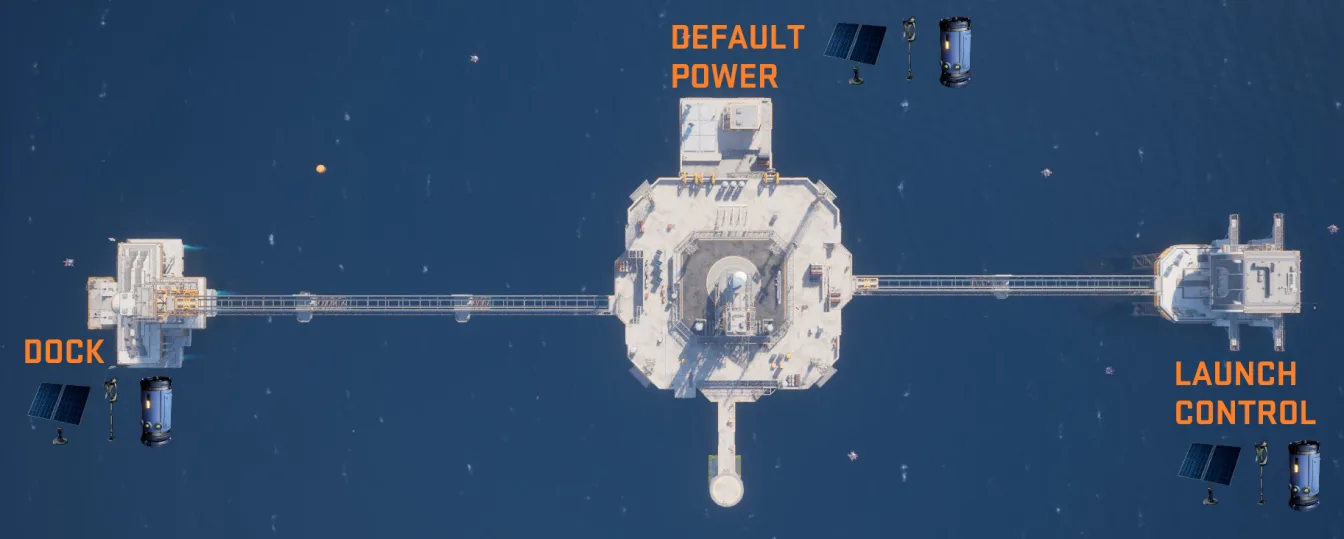
| The power grid setup at Exodus Station |
|
Seed Reserves Cause Lag or Seeds Have Disappeared
| Possible causes | Possible solutions |
|---|---|
| Known bugs |
|
| Seeds lost from seed reserves |
|
Cables, Enemies or Objects Glitching
| Possible causes | Possible solutions |
|---|---|
| Known bugs |
|
| Materials stuck mid-air after dismantling recycler |
|
Performance Issues (Especially Around Large Locations)
If you're experiencing frame rate drops, especially around major locations like the Lazarus Complex, try these solutions:
| Possible causes | Possible solutions |
|---|---|
| Known performance issue (we're always working on improvements) |
|
Experiencing Frequent Crashes?
We work hard to make The Last Caretaker compatible with as many hardware configurations as possible, but sometimes specific setups can cause crashes that are difficult to track down.
If you're experiencing crashes that won't go away after trying the solutions in this guide, we really want to hear from you! Your reports help us fix these issues for everyone.
Contact us through any of our support channels and include as much detail as possible about when and how the crashes occur.
Tips for Smooth Sailing
Follow these best practices to avoid common issues and keep your gameplay experience smooth:
- Keep your boat tidy: Loose items scattered on your boat can cause stability problems. Store materials in DuraPack, StorTite or FortiHold containers whenever possible.
- To use the mooring ropes effectively:
- Pull along side the dock, do not drop the anchors
- Remove any dock fenders
- Connect the mooring ropes to pull the boat in closer to the dock
- Go to the wheelhouse and drop the anchors
- Disconnect the mooring ropes
- Be careful with hull modifications: While you can build on the bottom of your boat's hull, loose items can get caught in these structures and cause severe instability. If your boat starts acting strangely, try removing any objects built on the hull.
- Enable auto-save: In your gameplay settings, turn on auto-save and set it to save every 5 minutes. This gives you plenty of recovery options if something goes wrong.
Mods and Third-Party Tools
We love that players want to customize their experience! We fully support modders and modding communities, and we appreciate the amazing work they do.
However, during Early Access, our team is focused on fixing bugs and delivering new content. Because of this, we can't provide official support for mods or third-party tools or troubleshoot issues that may be caused by them.
If you're experiencing problems and you're using mods, please try disabling them first to see if that resolves the issue before contacting support.
Keep checking back: This support guide is a living document that we update as we continue to improve the game. You can always see when it was last updated by checking the timestamp at the top of the page. Follow us on our social channels to stay in the loop about updates and improvements!